
TP-Link Omada is a business networking system made up of a gateway, switches and wireless access points that are all managed from one place, called the controller. Instead of logging into each device separately, you see and change the whole network from one dashboard. This page explains what each part does and how they fit together.
1. The gateway
The gateway sits between your internet connection and the rest of the network. It directs traffic and gives each device its network address. Omada gateways are the ER series, for example the ER605 for small sites and the ER7206 or ER707-M2 for busier ones.
Your Omada gateway can switch to a 4G or 5G backup connection automatically if the main connection drops. We'll tell you which setup suits your site.
2. The switches
Switches connect wired devices such as computers, printers, cameras and access points. Omada switches are the JetStream range. Many include PoE (Power over Ethernet), which sends power down the network cable, so an access point on the ceiling needs no power point of its own. Managed switches also carry VLANs (virtual networks), which keep groups such as staff, guests and cameras apart on the same cabling.
3. The access points (EAPs)
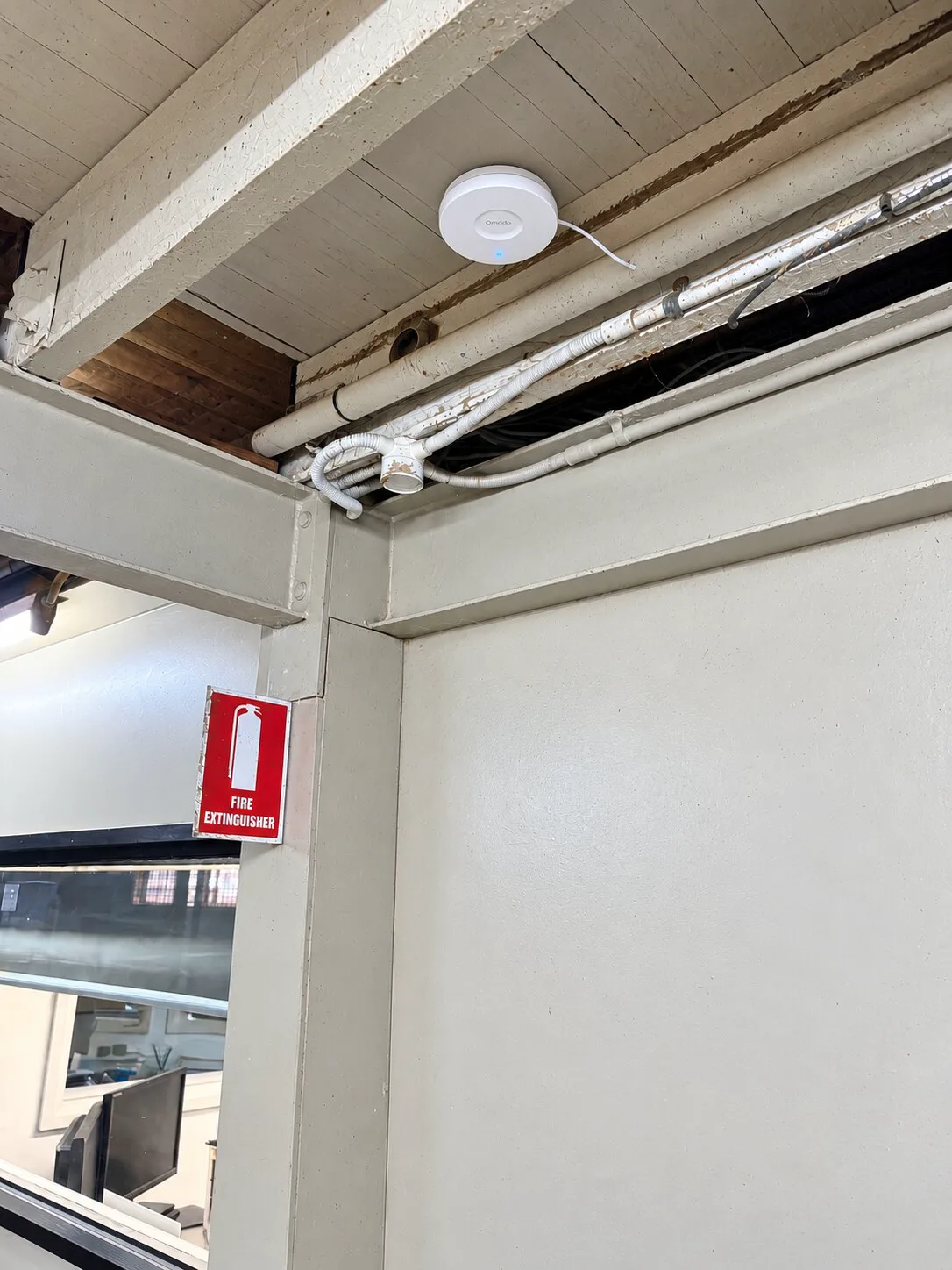
Omada access points are called EAPs. They mount on a ceiling or wall, or outdoors, and provide the Wi-Fi. They share one network name and settings, so phones and laptops can move between access points as staff walk around the building. Outdoor models are built for weather and suit yards, car parks and sheds.
4. The controller
The controller is the software that manages everything else. It stores the settings, pushes changes to every device, and shows what is connected and how the network is performing. There are three ways to run it. Our default is the cloud controller, with the OC200 hardware controller as an option.
- Cloud-Based Controller (our default). Hosted by TP-Link and paid by a licence per device. There is no controller box to power or look after on site, it is easy to add a second site later, and it lets us support the network remotely.
- Hardware controller (OC200, OC300). A small dedicated box on the network, with the settings kept on site and no per-device licence. We offer the OC200 as an option for sites that prefer this.
- Software controller. Free software installed on a computer or server that stays on. It suits sites with an existing always-on server.
The network keeps running if the controller is switched off. The controller is needed to make changes and keep statistics. Some guest sign-in pages also rely on it, so we plan for that on sites with guest Wi-Fi.
How it fits together
Internet comes in through the NBN or Starlink equipment to the gateway. The gateway connects to a PoE switch. The switch powers and connects the access points, and connects wired devices. The gateway and every device report to the cloud controller over the internet (or to an OC200 plugged into the same switch, if you chose one). From the Omada app or web dashboard you can see all of it.

What Omada makes easy
- Guest Wi-Fi on its own network, with a sign-in page that guests see first (a captive portal).
- Speed limits per network or per device.
- VLANs to separate staff, guests, cameras and point-of-sale.
- Automatic 4G or 5G backup, so a mobile connection takes over if the main one drops.
- Several sites in one dashboard.
- Wireless bridges between buildings. See connecting two buildings.
Omada or UniFi?
Both are complete business systems with a controller, gateway, switches and access points. TP-Link Omada is our standard choice. Its controller software is free, and it covers sites from a small office up to a warehouse. We also install Ubiquiti UniFi when a client prefers it or already has some UniFi equipment.
How we can help
We plan the network for your building, run any new cabling, install and set up the equipment on the cloud controller, and show you how to use the dashboard. After the install we can monitor and manage the network remotely on a support plan. If you already have some Omada equipment, we can add to it or tidy up the setup.

Questions
- Do I need a hardware controller?
- No. We set up the cloud controller by default, so there is no controller box on site. If you would rather keep the settings on site with no per-device licence, we can install an OC200 hardware controller instead.
- Is the Omada software free?
- The software controller and the Omada app are free. The Cloud-Based Controller, our default, is paid by a licence for each managed device.
- Can I manage the network from my phone?
- Yes. The Omada app shows connected devices and lets you change common settings.
- What happens if the controller goes offline?
- The Wi-Fi and wired network keep working. You need the controller back online to make changes, and some guest sign-in pages need it running.
- Can I add access points later?
- Yes. New Omada devices join the same controller and pick up the existing settings.
Vin Connect isn't endorsed by TP-Link or Ubiquiti. Vin Connect isn't affiliated with Mercusys, Starlink or SpaceX. Omada is a trademark of TP-Link.